
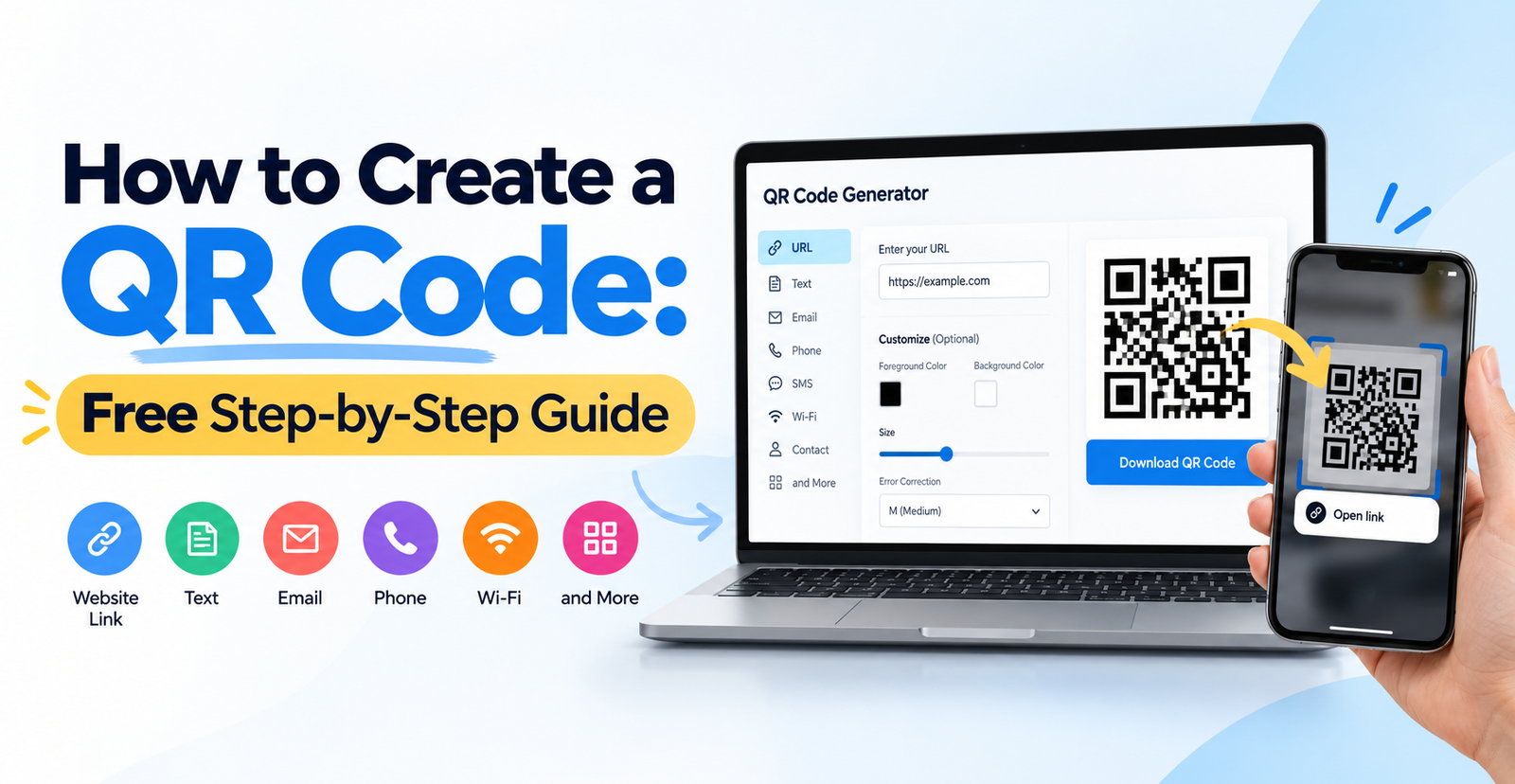
QR codes are everywhere: on menus, posters, packaging, business cards, invoices, and payment counters. The good news is that you do not need design skills or paid software to make one. If you want to know how to create a QR code, you can do it for free in under a minute with our QR Code Generator.
This guide shows you how to make a QR code step by step, how to scan a QR code on different devices, what QR stands for, how QR codes work, and how to avoid common mistakes that make codes fail.
What Is a QR Code?
A QR code is a square barcode made of black and white modules that a phone camera can read. When you scan it, it can open a link, display text, start a call, or perform another action. It can store more data than a traditional one-dimensional barcode and can be read from different directions.
What Does QR Stand For?
QR stands for Quick Response. The format was created in 1994 by Denso Wave, a Japanese company, to track car parts during manufacturing. Today, QR codes are used by businesses, schools, and individuals around the world.
How Do QR Codes Work?
A QR code stores data as a pattern of squares. Three large squares in the corners help the scanner locate the code and determine its orientation. The remaining pattern holds the encoded data and error-correction information. When your phone camera reads the pattern, it decodes it into information such as a web address. Built-in error correction can also help a code remain readable when part of it is damaged or obscured.
How to Create a QR Code (Step by Step)
The steps below explain how to make a QR code, how to generate a QR code, and how to get a QR code. The basic process is the same.
Step 1: Open a Free QR Code Generator
Open the FreeGenLab QR Code Generator. You do not need to install software or create an account.
Step 2: Choose What the QR Code Should Do
Select the QR code type that matches your goal. A website URL is a common choice, but you may also be able to create codes for plain text, email, phone numbers, SMS, contact details, and other content depending on the generator's available options.
Step 3: Enter Your Content
Paste your link or type your text. Double-check the information before generating the code. If a link contains a typo, people who scan the code may reach the wrong page.
Step 4: Customize the Design
If the tool offers customization, you can change the colors and other design settings. Keep strong contrast between the code and its background. A dark code on a light background is generally the safest choice.
Step 5: Download Your QR Code
Download the generated image and save it to your device. Choose a suitable, high-resolution format if you plan to print it.
Step 6: Test Before You Share
Scan the code with at least two phones before printing or publishing it. This quick check helps prevent printing mistakes and broken links.
How to Make a QR Code for a Link or Website
Turning a link into a QR code is one of the most popular uses. Copy the complete web address, including https://, paste it into the URL field of the generator, and download the code.
You can create QR codes for:
- Your website or online store
- A landing page or product page
- A social media profile
- A YouTube video or Google Maps location
- An online menu, portfolio, or booking page
Tip: Use the final destination address and test it before printing. A redirect may add an extra step, so use a direct URL when practical.
How to Make a QR Code for a Google Form
A QR code is a convenient way to share a survey, registration form, or feedback form. Open your Google Form, select Send, and copy the shareable link. Paste that link into the URL field of the QR code generator and download the code.
When someone scans it, they can open the form directly. Before sharing, confirm that the form accepts responses and that its access settings allow your intended audience to open it.
How to Make a QR Code for Free
You can create a QR code without paying for a generator that offers free creation. With FreeGenLab, you can generate a code without signing up. However, check the available download formats and terms before using any QR code service. Some services restrict downloads or offer dynamic QR codes that depend on an active subscription.
Can You Draw a QR Code by Hand?
Technically, a QR code can be drawn by hand because it follows a defined pattern of squares. However, creating a valid code manually is difficult because the position markers, timing patterns, encoded data, and error-correction information must be accurate. Using a QR code generator is faster and more reliable.
How to Create a QR Code in Canva
Canva offers QR code functionality through its design tools and available apps. Open a design, find the QR code feature, enter your link, and add the generated code to your layout. This is useful when designing a flyer, poster, or business card.
If you only need a QR code image, the FreeGenLab QR Code Generator provides a dedicated way to create a code that you can then place in your preferred design tool.
How to Scan a QR Code
Most modern smartphones can scan QR codes using the built-in camera, without requiring a separate app.
How to Scan a QR Code on iPhone
- Open the Camera app.
- Point the camera at the QR code and keep it inside the frame.
- Wait for a notification or link to appear.
- Tap the notification to open the destination.
If nothing happens, improve the lighting and hold the phone steady. You can also try the Code Scanner shortcut in Control Center if it is available.
How to Scan a QR Code on Android
- Open the Camera app. Many Android phones support automatic QR scanning.
- Point the camera at the code and hold the phone steady.
- Tap the link or suggestion that appears.
If your camera does not recognize QR codes, try Google Lens or the scanner feature available on your device. The exact steps may vary by phone model.
How to Scan a QR Code on a Computer
You can scan a QR code on a computer using several methods:
- Use an online QR code scanner that supports uploaded images or a webcam.
- Take a screenshot of the QR code and upload it to a compatible scanner.
- Scan the code displayed on your computer screen using your phone.
When uploading an image to an online scanner, avoid including sensitive information unless you trust the service.
Why Won't My QR Code Scan?
Common causes include low contrast, a code that is too small, a blurry or damaged print, glare, or incorrect encoded information. Improve the lighting, clean your camera lens, move closer if necessary, and check that the QR code is clear and unobstructed.
How to Use a QR Code
Once you know how to create and scan a QR code, you can use it in many personal and business situations.
- Restaurants and cafes: Link to a digital menu.
- Business cards: Share contact details or a website.
- Marketing: Direct people to an offer or landing page.
- Events: Share tickets, schedules, or registration forms.
- Packaging: Link to product instructions, warranty information, or reviews.
- Invoices and receipts: Direct customers to a payment page. Try our Invoice Generator for invoice creation.
- Wi-Fi and sharing: Help guests connect to a network or open a page.
- Education: Link to worksheets, videos, and online forms.
QR Code Best Practices
Follow these guidelines to make your QR codes easier to scan and more reliable.
- Keep high contrast: Dark codes on light backgrounds generally scan best.
- Make it large enough: A printed code should generally be at least about 2 × 2 cm (roughly 0.8 inches), with larger sizes for posters or long scanning distances.
- Leave a quiet zone: Keep a clear margin around the code so scanners can identify its boundaries.
- Do not stretch or distort it: Scale the image proportionally.
- Test every code: Scan it on more than one phone before printing.
- Add a call to action: A line such as "Scan to view the menu" tells people what to expect.
- Use a suitable resolution: Choose a high-quality file for print so the edges remain clear.
- Check the link twice: A broken or incorrect destination makes the code ineffective.
Do QR Codes Expire?
It depends on the type of QR code. A static QR code stores data directly in its pattern, so it does not have a service-based expiry date. It remains useful as long as the encoded information or destination is available. A dynamic QR code usually points to a redirect link managed by a service, so it may stop working if the service is discontinued or a required subscription ends.
If you want a QR code for long-term use, consider a static code for fixed information and keep the destination page active.
QR Code Safety Tips
Creating a QR code is generally straightforward, but scanning an unknown code can carry risks because it may direct you to a malicious website.
- Check the link preview before opening it.
- Be cautious of QR codes that appear to have been pasted over other codes in public places.
- Never enter passwords or payment details on an unfamiliar page reached through a QR code.
- Avoid downloading an unexpected app after scanning a code.
- Check the website address carefully before sharing personal information.
Common QR Code Mistakes to Avoid
- Low-contrast colors: Light gray on white can be difficult to scan.
- Codes printed too small: Increase the size for the intended scanning distance.
- Skipping the test scan: Always test before printing.
- Using a non-mobile-friendly destination: Make sure the linked page works on smartphones.
- Depending on a paid dynamic code: Check whether the service requires an active subscription.
- Choosing a reflective or curved surface: Glare and distortion can interfere with scanning.
- Forgetting a call to action: Tell users why they should scan the code.
Related Free Tools
Explore these tools for common business and document tasks.
- QR Code Generator: Create a QR code for a link or other supported content.
- Invoice Generator: Create an invoice and include a payment link or QR code where appropriate.
- Receipt Generator: Create receipts for payments received.
- Barcode Generator: Generate barcodes for product labeling.
- Quote Generator: Prepare a price quotation.
Frequently Asked Questions
How Do I Create a QR Code for Free?
Open a free QR code generator such as FreeGenLab, choose the content type, enter your link or text, and generate the image. You do not need to sign up to use the FreeGenLab QR Code Generator.
How Do I Make a QR Code for a Link?
Copy the complete link, paste it into the URL field, generate the code, and download it. Scan it once to confirm that it opens the correct page.
What Does QR Code Stand For?
QR stands for Quick Response. It refers to a two-dimensional barcode designed for fast reading and data retrieval.
How Do I Scan a QR Code on My Phone?
Open your phone's camera, point it at the code, and tap the link that appears. This works on most modern iPhone and Android devices.
How Do I Scan a QR Code on a Computer?
Use an online scanner that supports webcam access or image uploads, or scan the QR code displayed on your computer screen with your phone.
How Do QR Codes Work?
A QR code stores data as a pattern of squares. A scanner reads the pattern, decodes the information, and opens the relevant link or displays the encoded text.
Do QR Codes Expire?
Static QR codes do not have a service-based expiry date. Dynamic codes may stop working if the redirect service or required subscription ends.
Can I Make a QR Code for a Website?
Yes. Paste your website address into the URL field of a QR code generator and generate the code. Test it before sharing or printing it.
How Big Should a QR Code Be?
A printed QR code should generally be at least about 2 × 2 cm. Use a larger code when people need to scan it from farther away.
Is It Safe to Scan QR Codes?
Many QR codes are legitimate, but some may lead to malicious websites. Check the destination preview and avoid entering sensitive information on pages you do not trust.
Conclusion
Now you know how to create a QR code: open a generator, choose the content type, enter your link or text, download the image, and test it. You also know how to scan a QR code on iPhone, Android, and computers, and how to avoid common scanning mistakes.
Create your code in minutes with the FreeGenLab QR Code Generator.