
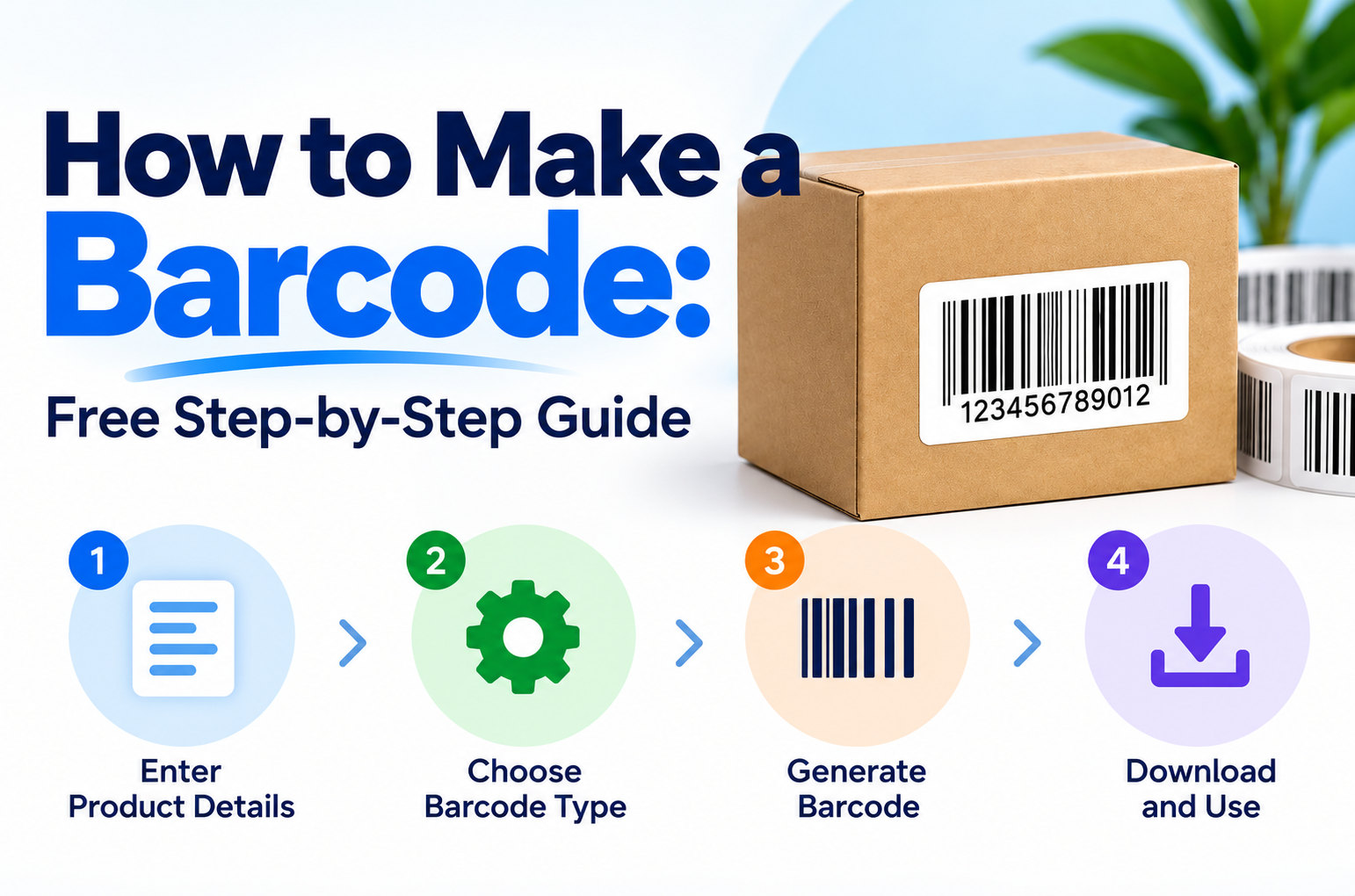
How to Make a Barcode
You make a barcode by choosing a barcode type, entering the number or text you want to encode, generating the image, and printing it clearly. With a free online barcode generator, you can finish this in about a minute.
This guide shows exactly how to make a barcode for products, inventory, links, and labels. You will also learn how to get an official UPC, how to create a barcode in Excel, and how to make a QR barcode. Everything here works for shop owners, online sellers, freelancers, and anyone who needs a scannable code.
Quick Answer: How to Create a Barcode
- Decide what the barcode is for: a product, inventory, a link, or a label.
- Pick the right barcode type (UPC, EAN, Code 128, or QR).
- Enter the number or text you want to encode.
- Generate the barcode in a free online generator.
- Download the image.
- Test it with a phone or scanner.
- Print it at a clear size with a white background.
What Is a Barcode?
A barcode is a machine-readable pattern that stores data. A scanner reads the pattern and sends the data to a computer, which then shows a product name, price, or stock record. Barcodes speed up checkout, reduce typing mistakes, and make inventory counts much faster.
There are two main families:
- 1D (linear) barcodes: Use vertical lines, like the barcode on a cereal box.
- 2D barcodes: Use squares or dots, like a QR code. They hold much more data, such as a website link or contact details.
Types of Barcodes and When to Use Them
Before you make a barcode, choose the type that fits your job. The wrong type is the most common reason a barcode fails.
| Barcode Type | What It Encodes | Best For |
|---|---|---|
| UPC-A | 12 digits | Retail products sold in North America |
| EAN-13 | 13 digits | Retail products sold worldwide |
| Code 128 | Letters, numbers, and symbols | Inventory, shipping labels, and internal SKUs |
| Code 39 | Capital letters, numbers, and a few symbols | Simple labels, ID cards, and Excel barcodes |
| QR Code | Links, text, Wi-Fi, contacts, and payment information | Marketing, menus, and payment pages |
What Is Code 128?
Code 128 is a compact, high-density barcode that can store the full ASCII character set. Businesses use it for inventory, warehouses, and shipping labels because it packs a lot of data into a small space.
What Is the UPC?
UPC stands for Universal Product Code. It is the 12-digit number under the bars on most retail products. Stores use it to identify the exact product at checkout.
How to Make a Barcode Step by Step
Step 1: Decide What the Barcode Is For
Start with the purpose. A product sold in shops needs an official UPC or EAN. A barcode for your own stock room or warehouse can use any simple number system you create. A barcode for a website needs a QR code.
Step 2: Choose the Barcode Type
Use the table above to select the right format. For most internal inventory work, Code 128 is a practical choice. For retail products, use UPC-A or EAN-13. For links, choose a QR code.
Step 3: Prepare Your Number or Text
Decide exactly what the barcode will encode.
- For UPC-A, you need 11 digits plus a check digit, or all 12 digits.
- For EAN-13, you need 12 digits plus a check digit, or all 13 digits.
- For Code 128 and Code 39, use your own SKU, like
SHIRT-BLU-Mor10025. - For QR codes, use the full link, like
https://example.com.
Keep the data short when possible. Shorter data generally makes a barcode easier to print and scan.
Step 4: Generate the Barcode Online
Open the FreeGenLab Barcode Generator, select the barcode type, enter your data, and generate the code. The barcode appears instantly, so you can check it before saving anything. No sign-up is needed.
Step 5: Download the Barcode Image
Download the finished barcode and name the file clearly, for example barcode-SKU10025.png. Keep your barcode images in one folder so you can find them later.
Step 6: Test the Barcode
Always scan before printing in bulk. Use a phone camera, a barcode scanner app, or a real scanner. Check that the scanned result matches the number you entered. A barcode that looks perfect on screen can still fail on paper.
Step 7: Print or Place the Barcode
Print on a white or light background with dark bars. Do not stretch or squash the image. Leave a blank margin around it, often called the quiet zone. Then stick the label on the product, box, or shelf.
How to Make a QR Barcode
People search for "how to make a QR barcode" more than almost any other barcode topic. A QR code is a 2D barcode that opens a link, shows text, or shares details when someone scans it with a phone.
To make a QR barcode:
- Open the QR Code Generator.
- Choose what it should do: open a URL, show text, send an email, call a number, or share contact details.
- Enter your link or text.
- Generate and preview the code.
- Download it and test it with your phone.
- Print it large enough to scan easily.
Tips for a QR Code That Scans Every Time
- Use high contrast: a dark code on a light background.
- Keep the link short.
- For close scanning, avoid printing it smaller than about 2 cm on each side.
- Test it on both Android and iPhone before printing.
For payment pages, you can also create a QR code that opens your payment link so customers can pay in seconds.
How to Get a Barcode for a Product
If you want to sell a product in shops or on major marketplaces, you usually need an official, unique product number. You cannot simply invent one because it could clash with another seller's product.
How to Get a UPC or EAN
- Register with GS1, the global organization that manages product barcode standards. Most countries have a local GS1 office. Pakistan has GS1 Pakistan.
- Apply for a company prefix. This is the unique number that identifies your business.
- Assign a product number to each item you sell. Each size, color, or variant may need its own number.
- Generate the barcode image from that number using a barcode generator.
- Print the barcode on your packaging or label.
Fees and rules depend on your country and the number of products you have, so check the current details with your local GS1 office before applying.
Can I Make a Barcode for Free for a Product?
You can generate a barcode image for free, but the number inside it must be unique. If you plan to sell through retailers or marketplaces that verify product codes, use official GS1 numbers. If the barcode is only for your own shop, stock room, or warehouse, you can create your own numbers for free.
How to Create a Barcode in Excel
Excel does not have a built-in barcode tool, but you can create barcodes with a barcode font. This method works well for lists of SKUs.
- Download and install a free Code 39 barcode font, then restart Excel.
- Type your value in a cell, with an asterisk at the start and end. For example,
*10025*. Code 39 needs these asterisks as start and stop characters. - Select the cell and change the font to your Code 39 font.
- Increase the font size until the barcode is easy to scan.
- Print a test page and scan it.
To make many barcodes at once, put your SKUs in column A. In column B, use a formula like ="*"&A2&"*" and drag it down. Then apply the barcode font to column B.
The same font method works if you want to generate a barcode in Word.
Limits of the Excel Method
Code 39 only supports capital letters, numbers, and a few symbols. Code 128, UPC, and EAN need special fonts or add-ins. Excel barcodes can also break if the font is missing on another computer. If you want something quicker and more reliable, generate the barcode with an online tool and insert the image.
How to Create Barcodes for Inventory
Barcodes make inventory faster and more accurate. A simple setup looks like this:
- Give every product a unique SKU, such as
TSH-BLU-M. - Choose Code 128 for your barcode type.
- Generate one barcode per SKU.
- Print labels and attach them to each item or shelf.
- Scan items when they arrive, when they sell, and during stock counts.
Keep one master sheet that lists every SKU, its product name, and its price. If you also bill customers, you can pair your stock labels with the FreeGenLab Invoice Generator so your invoices and inventory use the same SKUs.
How to Read a Barcode Number
A UPC-A barcode has 12 digits. Here is what each part means, using 036000291452 as an example:
| Part | Digits | Meaning |
|---|---|---|
| Number system | 0 | Indicates the number system |
| Manufacturer code | 36000 | Identifies the company |
| Product code | 29145 | Identifies the item within the numbering system |
| Check digit | 2 | Helps confirm the number is valid |
The check digit is calculated from the other 11 digits:
- Add the digits in odd positions (1st, 3rd, 5th, and so on).
- Multiply that sum by 3.
- Add the digits in even positions.
- Add the two results together.
- The check digit is the number needed to reach the next multiple of 10.
For 03600029145, the odd-position digits add to 14, and 14 × 3 = 42. The even-position digits add to 16. The total is 58, so the check digit is 2.
Good barcode generators calculate the check digit automatically.
How to Print Barcodes
A barcode that does not print well will not scan. Follow these rules:
- Print at 300 DPI or higher.
- Use black bars on a white background.
- Do not resize by stretching. Scale the image evenly.
- Leave blank space on both sides of the barcode.
- Avoid glossy or curved surfaces when possible, since glare can block the scanner.
- Test one printed label before printing a full sheet.
For many labels, print on a sticker sheet or use a label printer. A thermal label printer is a good choice if you print barcodes every day.
Why Won't My Barcode Scan?
If a barcode will not scan, one of these is usually the reason:
- Low contrast: Light bars or a colored background make it hard to read.
- Too small: The bars are too thin for the scanner.
- Stretched image: The proportions have changed.
- No quiet zone: Text or lines are too close to the edges.
- Wrong type: The scanner does not support that barcode type, or the data does not fit it, such as letters in a UPC.
- Damaged or smudged print: Reprint on better paper or use a cleaner printer.
Common Barcode Mistakes to Avoid
- Inventing product numbers for retail products instead of using official GS1 numbers.
- Reusing the same number for different products.
- Using the wrong barcode type for the job.
- Printing too small or at low quality.
- Not testing before printing in bulk.
- Changing a SKU after labels have already been printed.
Barcode Generator: Free Online Tool
You do not need paid software to make a barcode. The free FreeGenLab Barcode Generator works in your browser.
- Open the barcode generator.
- Choose a barcode type.
- Enter your number or text.
- Preview the barcode.
- Download it and print.
Why People Use It
- Free, with no sign-up needed.
- Works on mobile, tablet, and desktop.
- Provides instant results that you can check before saving.
- Useful for products, inventory, labels, and links.
Related Free Tools
- QR Code Generator: Make QR codes for links, text, and payments.
- Invoice Generator: Bill your customers with a clean PDF invoice.
Frequently Asked Questions
How do I make a barcode for free?
Use a free online barcode generator like the FreeGenLab Barcode Generator. Choose a type, enter your number, and download the image. No sign-up is needed.
How do I make a QR barcode?
Open a QR code generator, enter your link or text, generate the code, download it, and test it with your phone before printing.
How do I get a barcode for my product?
Register with GS1 in your country to get a company prefix and official product numbers. Then generate the barcode image from your assigned number.
How do I get a UPC code?
UPC codes are issued through the GS1 system. After getting the appropriate company prefix, you assign a number to each product and generate the barcode.
Can I make a barcode in Excel?
Yes. Install a Code 39 barcode font, type your value between two asterisks, and change the cell font to the barcode font.
What is the difference between UPC and EAN?
UPC-A has 12 digits and is common in North America. EAN-13 has 13 digits and is used internationally. Most modern scanners can read both.
What is a Code 128 barcode?
Code 128 is a high-density barcode that can store letters, numbers, and symbols. It is popular for inventory and shipping labels.
What is the difference between a barcode and a QR code?
A traditional barcode is a 1D pattern of lines that stores data, commonly a product number. A QR code is a 2D square pattern that can store links, text, and much more data.
How do I read a barcode number?
A UPC-A number includes a number system digit, a manufacturer identification section, a product identification section, and a check digit. The last digit helps verify the number.
Do I need to pay to make a barcode?
Generating a barcode image is free. You may need to pay GS1 fees when you require official, globally unique product numbers.
What size should a barcode be?
Bigger is generally easier to scan. Keep the proportions unchanged, leave blank margins, and test a printed sample before printing many labels.
How do I print barcodes?
Download the barcode image, print at 300 DPI or higher on a white background, and test one label before printing a full sheet.
Why is my barcode not scanning?
Common causes include low contrast, a small size, a stretched image, missing margins, or the wrong barcode type.
Conclusion
To make a barcode, pick the right type, enter your number or text, generate the image, test it, and print it clearly. Use official GS1 numbers for retail products, and create your own SKUs for internal inventory. Skip the manual work and make your barcode free in under a minute.