
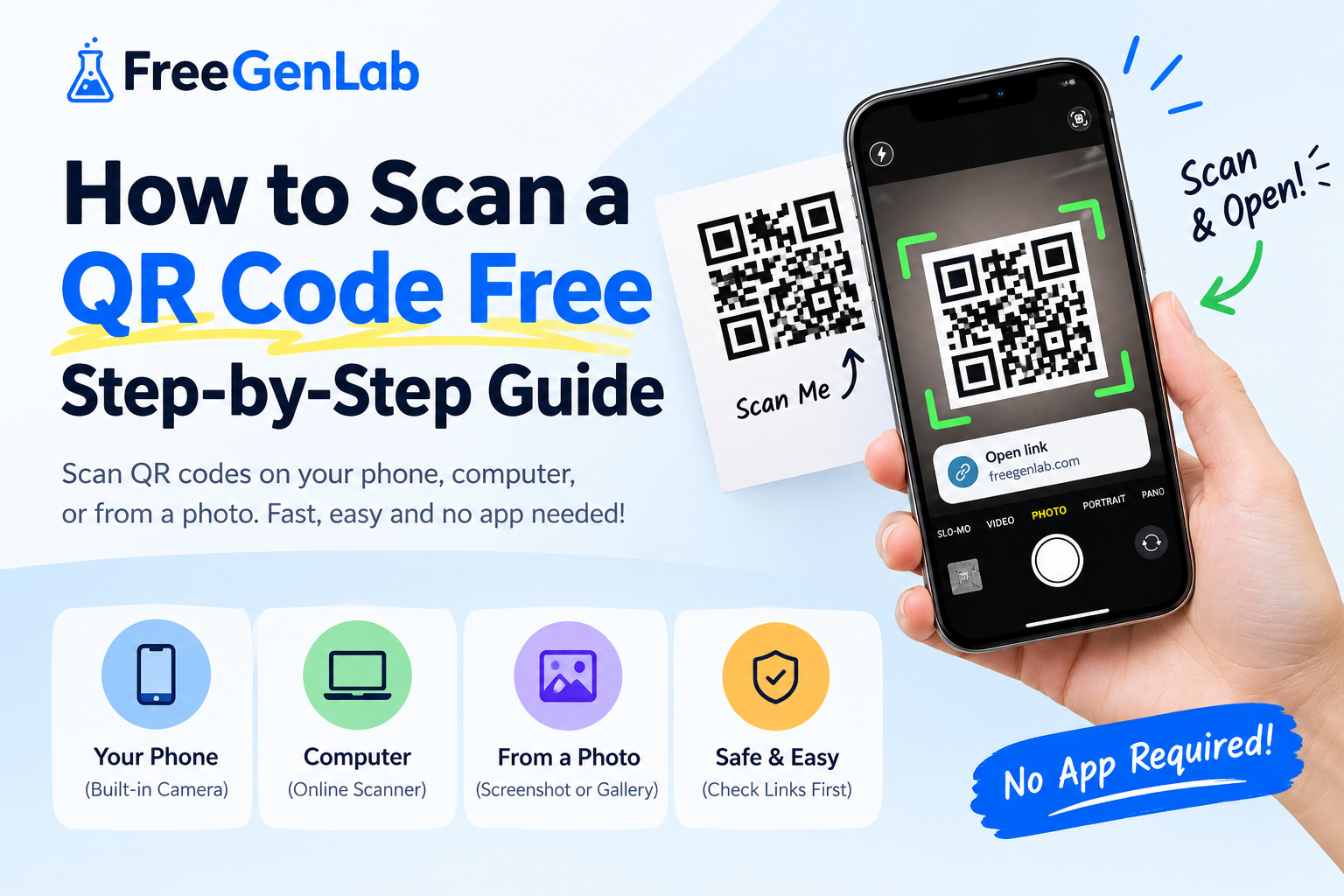
To scan a QR code, open your phone camera, point it at the code, and tap the link that appears. If you have no camera handy, or the code is in a screenshot or photo, you can use the free FreeGenLab QR Code Scanner in your browser instead. It takes a few seconds and needs no app.
This guide shows exactly how to scan a QR code on Android, iPhone, and computer. You will also learn how to scan a QR code from a screenshot or picture, what QR stands for, how QR codes work, and how to stay safe from fake codes.
Scan a QR Code Online Free
Use the FreeGenLab QR Code Scanner to read any QR code right in your browser:
- Open the QR Code Scanner.
- Allow camera access, or upload an image of the QR code.
- Hold the code inside the frame, or wait for the uploaded image to load.
- See the result instantly: a link, text, contact, Wi-Fi details, or other data.
- Check the result, then open it only if you trust it.
Why people use it:
- Free, with no sign-up and no app to install.
- Works on Android, iPhone, Windows, Mac, and Linux.
- Scans from your camera or from a saved image.
- Shows you what is inside the code before you open anything.
Quick Answer: How to Scan a QR Code on Your Phone
- Open the Camera app.
- Point it at the QR code and keep it steady.
- Wait for a link or notification to appear on the screen.
- Tap it to open the page.
If nothing happens, move closer or farther away, improve the light, or use the online scanner.
How to Scan a QR Code on Android
Most Android phones can scan QR codes with the built-in camera.
- Open the Camera app.
- Point the camera at the QR code so it sits fully inside the screen.
- Tap the link or pop-up that shows on screen.
If your camera does not react:
- Open Settings and search for "QR" or "Scan QR codes", then turn it on. The name changes by brand.
- Open the Google Lens app or the Google app and tap the camera icon.
- Swipe down for Quick Settings. Many phones have a Scan QR code button there.
- Use the free online scanner.
The steps look slightly different on Samsung, Xiaomi, Oppo, Vivo, and Infinix phones, but the Camera app method works on most.
How to Scan a QR Code on iPhone
iPhones read QR codes directly from the Camera app.
- Open the Camera app.
- Point it at the QR code.
- Tap the yellow banner or notification that appears.
If it does not work, go to Settings > Camera and make sure Scan QR Codes is turned on. You can also add the Code Scanner button to Control Center.
How to Scan a QR Code on a Computer
A computer has no phone-style camera scanner, but you have easy options:
- Use the online scanner. Open the FreeGenLab QR Code Scanner and either allow your webcam or upload an image of the code.
- Use your phone. Scan the code on the screen with your phone camera.
- Use a browser feature. Some browsers can search an image on the page, which can read a QR code inside it.
On a Mac, you can also take a screenshot of the code and upload it to the online scanner. On Windows, use the Snipping Tool to capture the code, save it, and upload it the same way.
How to Scan a QR Code From a Screenshot or Photo
This is one of the most common problems. You receive a QR code as an image in WhatsApp, email, or a PDF, and you cannot point your camera at the same phone screen. Do this:
- Save the QR code image or take a screenshot of it.
- Open the FreeGenLab QR Code Scanner.
- Choose the upload option and pick the image from your gallery or files.
- The scanner reads the code and shows the result.
Alternatively:
- Google Lens: open the image in your gallery, tap the Lens icon, and tap the QR code.
- iPhone: open the photo and press and hold the code, or use the Live Text option if your iPhone supports it.
- Second device: open the image on a laptop or another phone and scan that screen.
This also works for how to scan a QR code from a picture or from a PDF.
How to Scan a Barcode
A barcode is a pattern of lines, such as the code on a product. Scanning one is similar to scanning a QR code:
- Open a barcode scanner app, or a scanner tool that supports barcodes.
- Point the camera at the barcode so the lines fill the frame.
- Hold steady until it reads, then check the number it shows.
A normal phone camera app often reads QR codes but may not read every type of 1D barcode. Use a scanner app for those. If you need to make your own, see our guide on how to make a barcode.
What Is a QR Code?
A QR code is a square pattern of black and white modules that stores data. When a phone or scanner reads it, the data appears instantly. That data can be a website link, plain text, a phone number, an email, Wi-Fi details, a contact card, or a payment link.
Because it is two-dimensional, a QR code can hold far more than a traditional barcode and can be read from any angle.
What Does QR Stand For?
QR stands for Quick Response. The name comes from the goal of the code: to be read fast. A Japanese company called Denso Wave created the QR code in 1994 to track car parts during manufacturing. It has since spread to menus, tickets, payments, and marketing.
How Do QR Codes Work?
A QR code stores data as a pattern of small squares called modules. A scanner follows these steps:
- Finds the code. Three large squares in the corners tell the scanner where the code is and which way it faces.
- Fixes the angle and size. Smaller alignment and timing patterns help it correct for tilt or distance.
- Reads the modules. Each black or white square becomes a bit of data.
- Fixes errors. Built-in error correction can rebuild the data even if part of the code is dirty, torn, or covered by a logo.
- Shows the result. The decoded data appears as a link, text, or action.
QR codes have four error-correction levels, from about 7% up to about 30% of the code being recoverable. That is why a QR code with a small logo in the middle can still scan.
How Many QR Codes Are Possible?
There are 40 QR code versions. The largest version is a 177 by 177 grid and can hold up to 7,089 digits, about 4,296 letters and digits, or about 2,953 bytes of data. The number of possible different codes is effectively unlimited for everyday use.
How to Use a QR Code
You can use QR codes in many daily situations:
- Open a website from a poster, flyer, or product box.
- View a restaurant menu without a paper copy.
- Join Wi-Fi without typing the password.
- Pay a shop or send money through a payment app.
- Save a contact from a business card.
- Check in for events, flights, or tickets.
- Download an app from a store link.
To use any of these, scan the code and follow the action it shows.
How to Get or Make a QR Code
As well as scanning, many people want to create QR codes for their own link, menu, or business card. Use the free FreeGenLab QR Code Generator:
- Open the QR code generator.
- Choose the type: link, text, email, phone, Wi-Fi, or contact.
- Enter your data.
- Generate and download the code.
- Test it with the scanner before you print it.
If you want to turn a link into a QR code, paste the full URL, generate, and download. Always scan your finished code once to make sure it opens the right page.
Why Won't My QR Code Scan?
If a QR code will not scan, try these fixes:
- Add light. Dark or dim places make scanning hard.
- Clean the lens. A smudged camera blurs the code.
- Change the distance. Move closer or farther until the code is sharp.
- Hold still. Shaky hands cause blur.
- Remove glare. Tilt the phone or the code to avoid reflections.
- Check the code. If it is torn, faded, or too small, it may be damaged.
- Turn on the scan setting. Make sure QR scanning is enabled in your camera settings.
- Use another method. Try the online scanner, Google Lens, or a second phone.
Is It Safe to Scan QR Codes?
Scanning a code is safe. The risk comes from the link or action inside it. Scammers sometimes place fake QR codes on stickers, parking meters, or emails to send people to fake payment or login pages. This is often called QR phishing, or quishing.
Stay safe with these habits:
- Preview the link first. Look at the web address before you open it.
- Be careful with stickers. Do not trust a code stuck over another code in a public place.
- Never enter passwords or card details on a page you reached from a code you do not trust.
- Do not install apps from a random QR code. Use your official app store.
- Check the sender. If a code comes in an unexpected message, ignore it.
- Check payment details on your screen before you confirm any payment.
The FreeGenLab scanner shows you what is inside the code, so you can read it before you decide to open it.
Related Free Tools
- QR Code Generator: make QR codes for links, text, Wi-Fi, and more.
- Barcode Generator: create UPC, EAN, and Code 128 barcodes.
- Invoice Generator: bill customers with a clean PDF invoice.
- Receipt Generator: confirm a payment you received.
- How to Make a Barcode
Frequently Asked Questions
How do I scan a QR code? Open your phone camera, point it at the code, and tap the link that appears. Or use the free FreeGenLab QR Code Scanner in your browser.
How do I scan a QR code on Android? Open the Camera app and point it at the code. If it does not work, turn on QR scanning in settings or use Google Lens or the online scanner.
How do I scan a QR code on my iPhone? Open the Camera app, point it at the code, and tap the banner that appears. Make sure Scan QR Codes is on in Camera settings.
How do I scan a QR code on a computer? Use an online scanner with your webcam, or upload a screenshot or image of the code. You can also scan the screen with your phone.
How do I scan a QR code from a screenshot? Save the screenshot, open the online QR scanner, upload the image, and read the result. Google Lens also works on saved images.
Can I scan a QR code from a photo or gallery? Yes. Upload the photo to a QR scanner tool, or open it in Google Lens on Android.
Do I need an app to scan a QR code? No. Most phones scan QR codes with the built-in camera, and the online scanner needs no install.
What does QR stand for? QR stands for Quick Response.
What is a QR code used for? QR codes open links, show text, share contacts and Wi-Fi details, take payments, and track tickets and products.
How do QR codes work? A scanner finds the corner squares, reads the pattern of black and white modules, fixes any errors, and shows the stored data.
Can I scan a barcode with my phone? Yes. Use a scanner app or a tool that supports barcodes. Some camera apps read only QR codes.
Are QR codes safe? The code itself is safe, but the link inside can be fake. Check the web address before you open it and never share passwords from an unknown code.
Why is my QR code not scanning? Common causes are poor light, a blurry lens, a damaged or small code, or QR scanning turned off in settings.
Conclusion
To scan a QR code, open your camera, point it at the code, and tap the result. If your phone will not scan it, or the code is in a screenshot or photo, use the free online scanner. Check every link before you open it, and you can scan with confidence.